
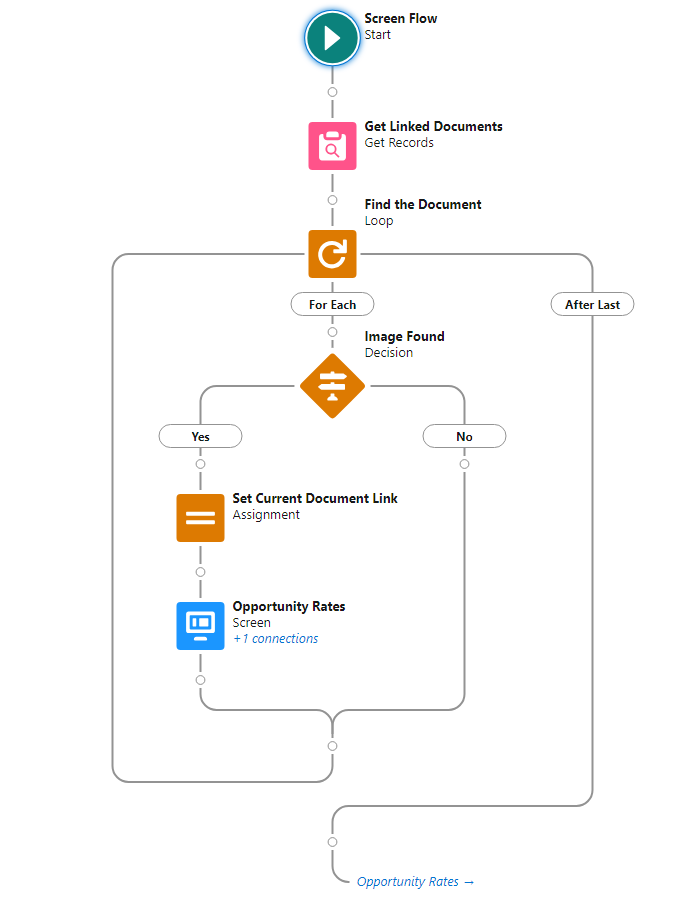
Request: Request is to show a specific image based on the name of the file attachement. By uploading a file with the name “Rate Card”, the image will appear only when the opportunity name contains the name “Burlington”.
Solution
Solution will be broken into 3 parts:
1. Creating a Custom Setting.
2. Creating a Screen Flow.
3. Adding the Screen Flow on the page layout.
1. Creating a Custom Setting
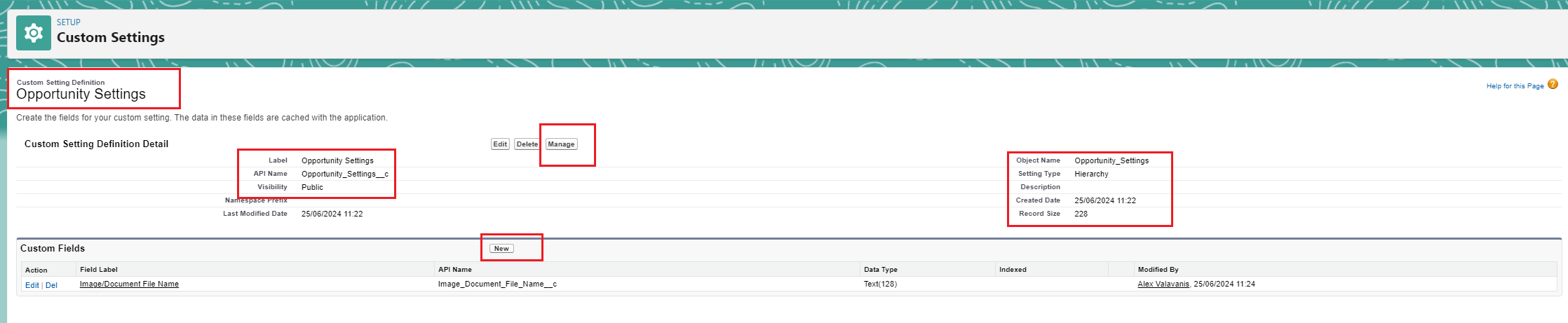
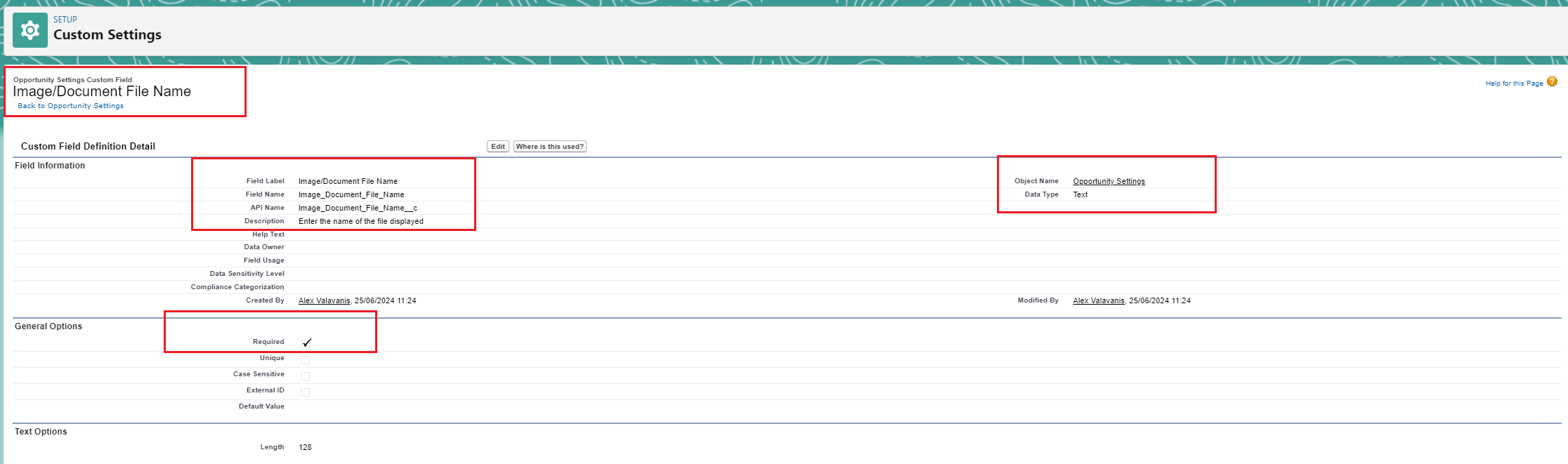
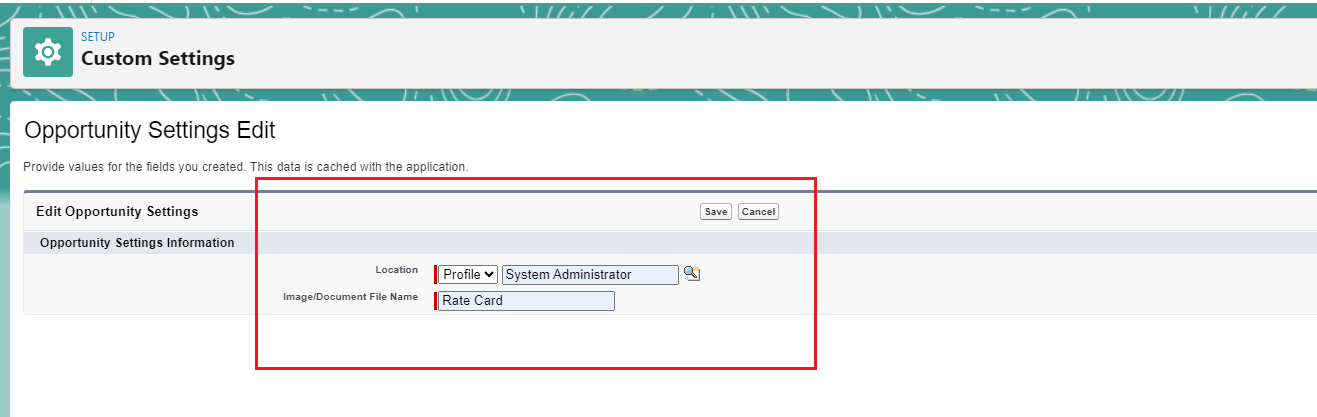
First and foremost we need to create a Custom Setting and custom field. We will use the custom setting later on the flow. We will name the Custom Field “Rate Card” – See screenshots below.
2. Creating a Screen Flow.
See below a video overview of the flow – Adding screenshots of the variables that need to be created.
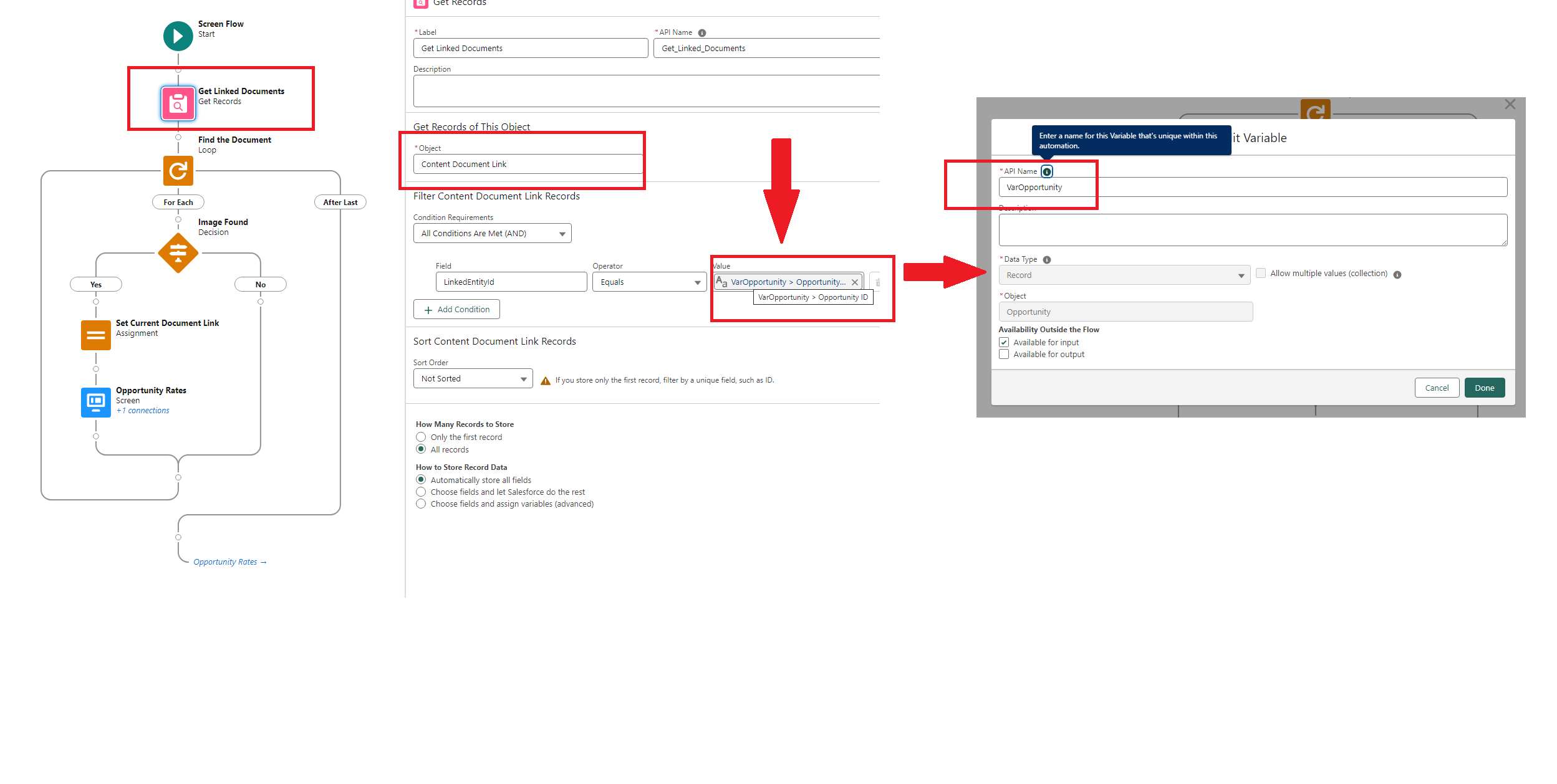
A. Variable VarOpportunity is used on first element (GET records)
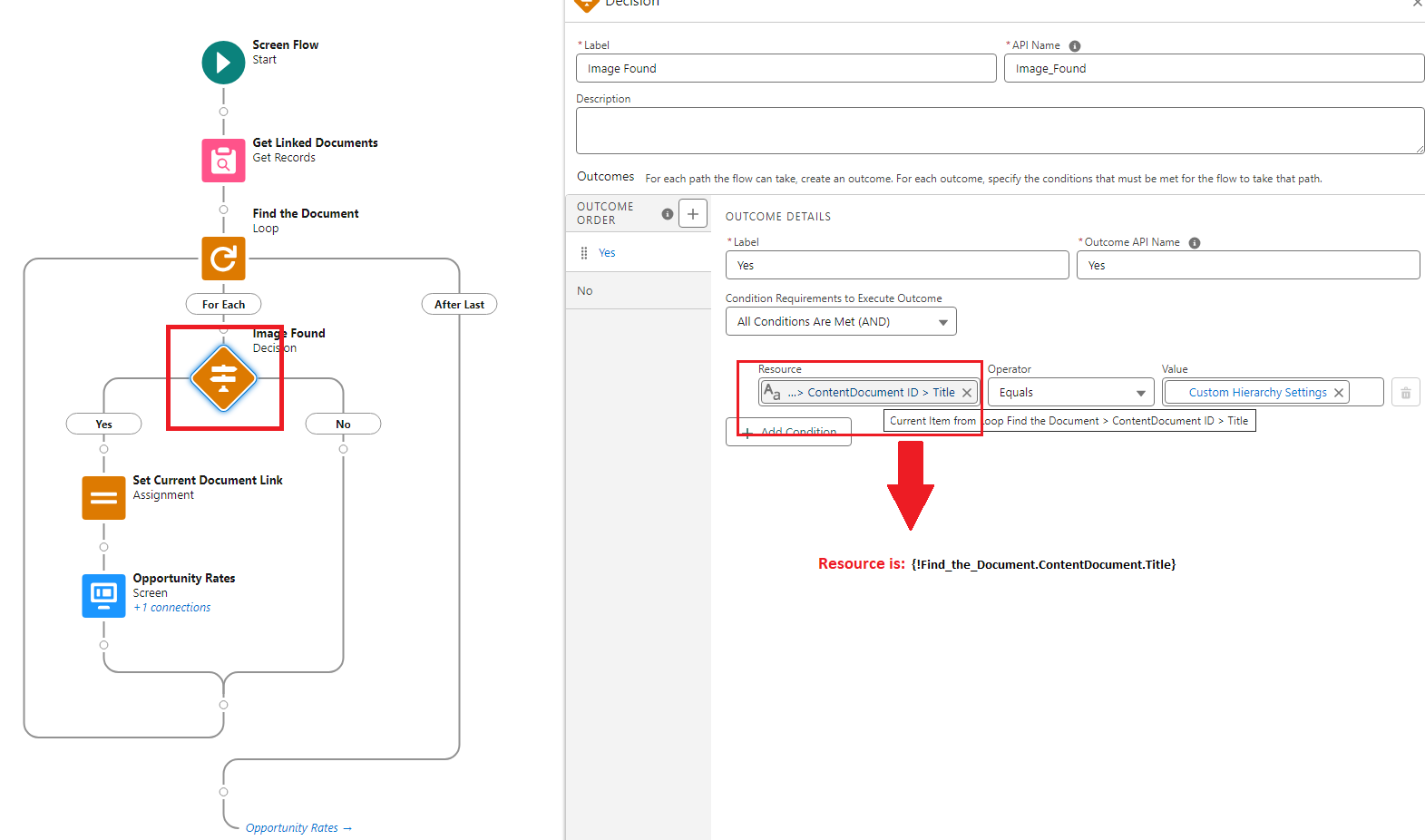
B. See resource from the Decision Element
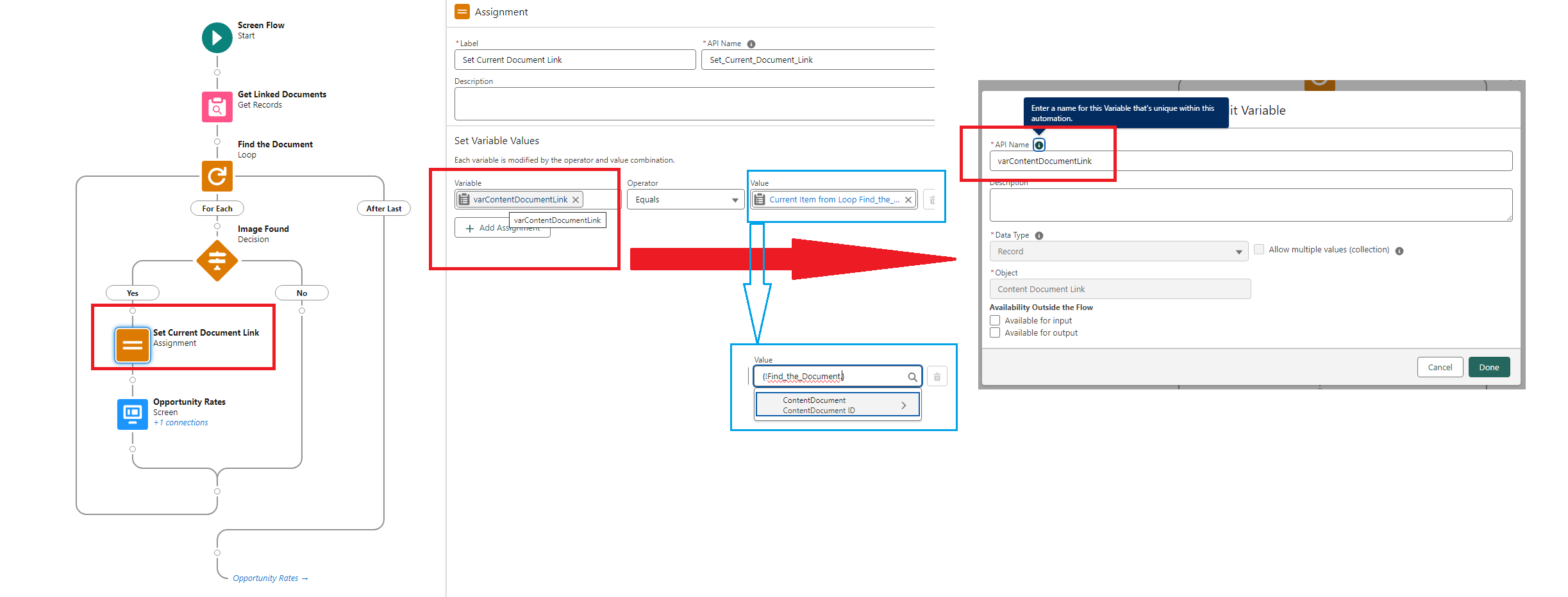
C. Variable varContentDocumentLink is used on assignment element – The variable operates in {!Find_the_Document} value (highlighted in the blue box).
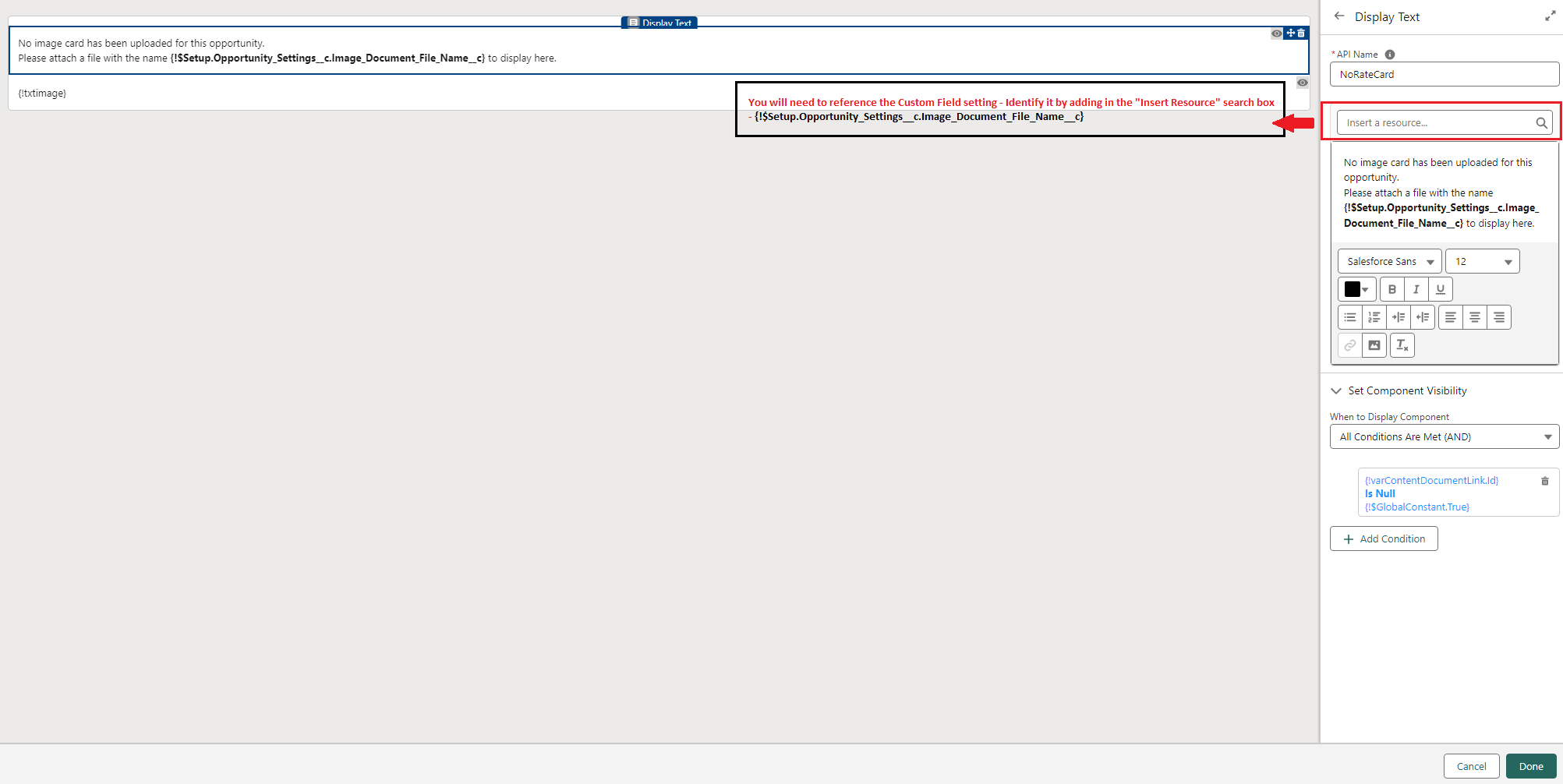
D. To create the message alert that an image needs to be uploaded with the “Rate Name” file name, you would need to reference the Custom Setting – Component visibility also used.
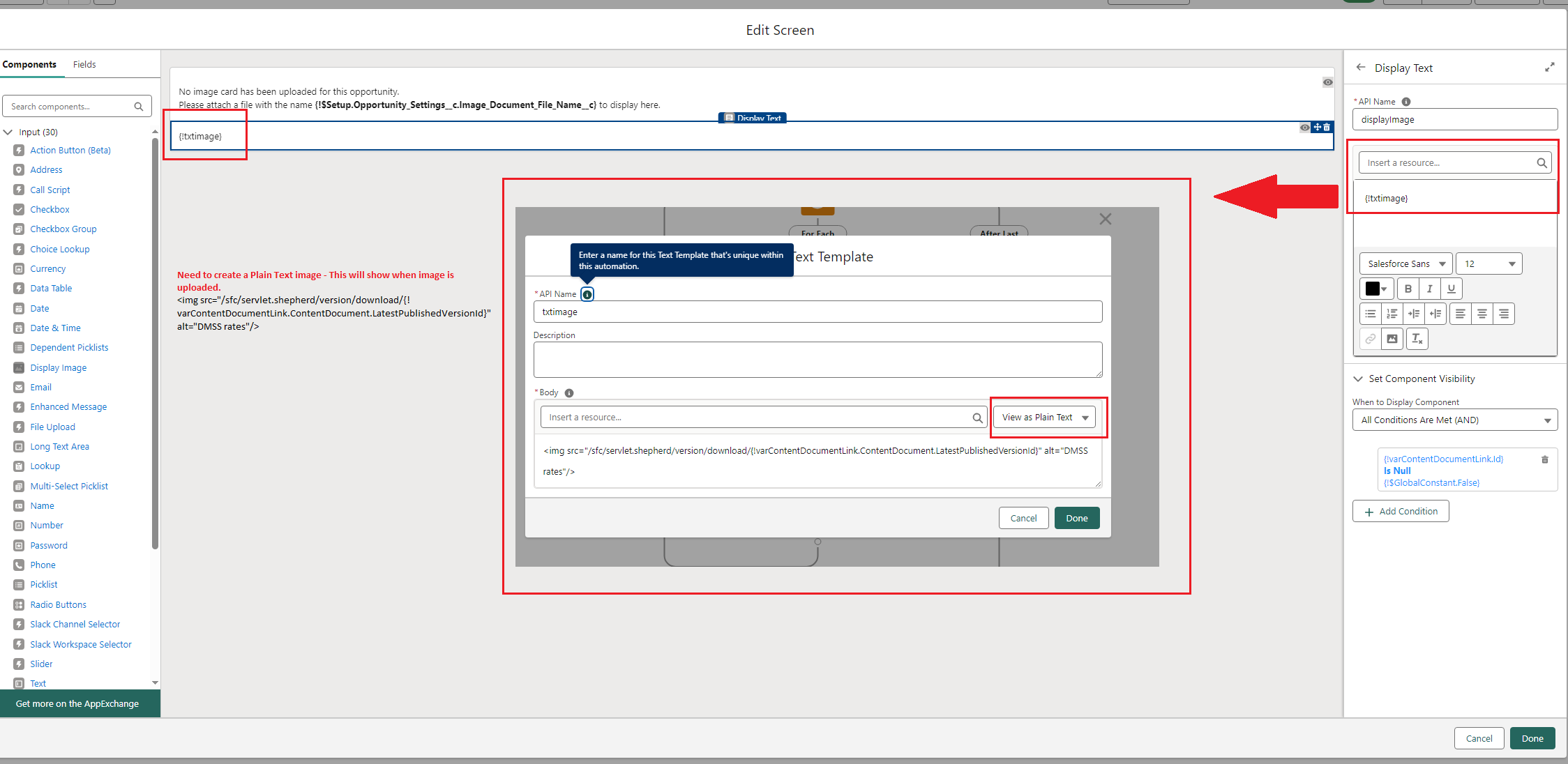
E. Second display is added for when the image has a “Rate Name”. txtimage created and Component visibility also added to the display
3. Adding the Screen Flow on the page layout.
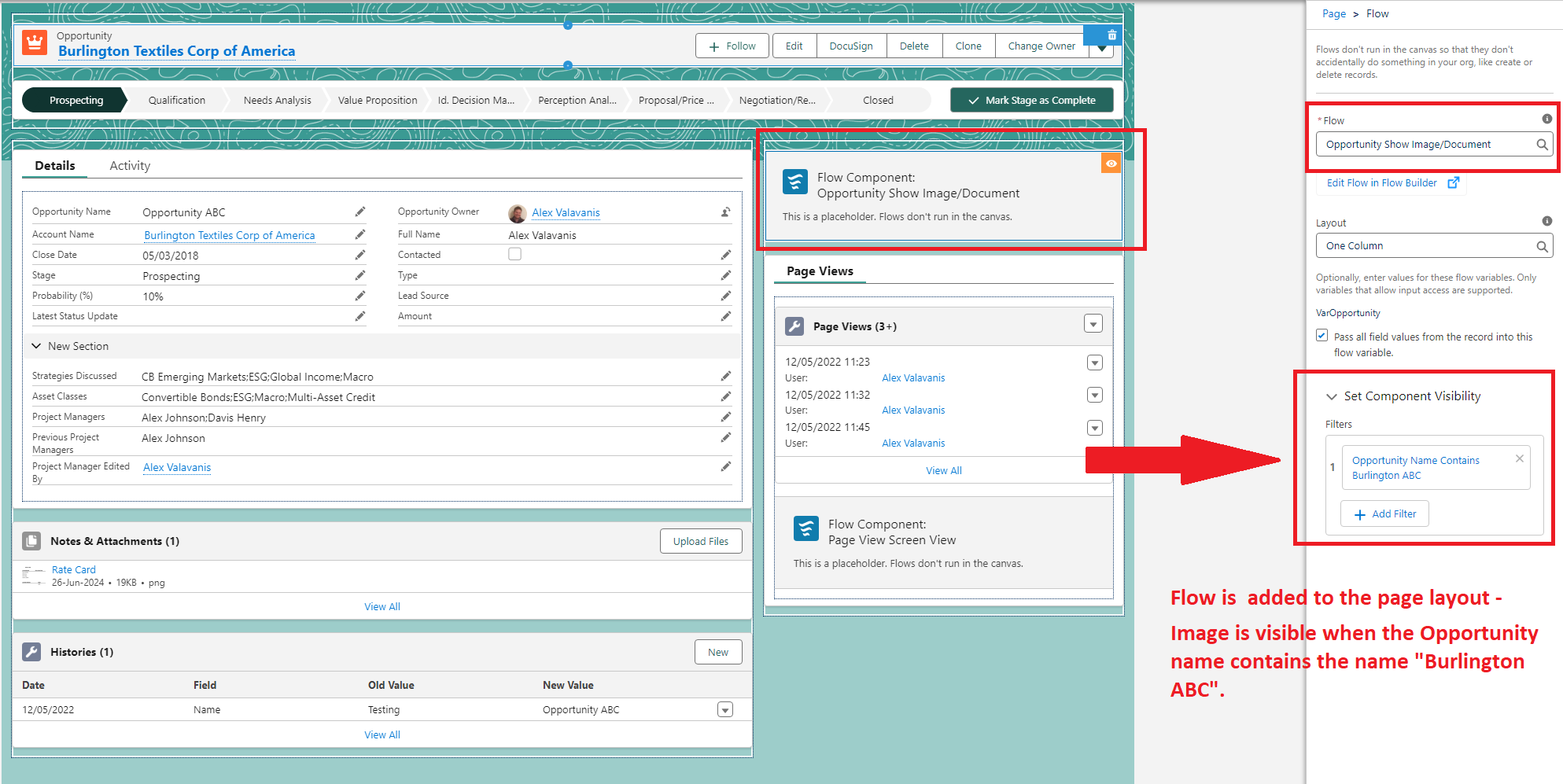
Final step is to add the flow to the page layout – Set the visibility to Opportunity Name contains “Burlington”.
Demo:
See demo below with the end result.


This is a really helpful explanation of how Salesforce Flow can be used to dynamically display a specific image based on record details. The step-by-step approach makes the solution easy to understand, especially for users working with Files and Opportunities. Thanks for sharing such a practical Salesforce Flow use case!
Thank you. Always happy to share practical ideas (when time allows 🙂) and do what I can to support and protect the Salesforce ecosystem.