
In this tutorial we are going to cover how to make a GET request to an external API using HTTP Callouts from a Salesforce flow.
Scenario/Use Case
We want any time an email is created or updated on the contact object, to call an external API (Abstract API – https://www.abstractapi.com) to validate the email address in order for us to see what kind of email that is (i.e. if it’s deliverable, free, disposable and what the quality score of that email is).
Prerequisites
- It is an assumption that you have an API Key. There are many APIs available on Internet. For this scenario we are using the API from Abstract.
Solution
The solution will consist of 4 steps:
- Create the Named Credentials.
- Create and assign the Permission Set.
- Create an Asynchronous autolaunched flow on the Contact object.
- Create a Before Save autolaunched flow on the Contact object.
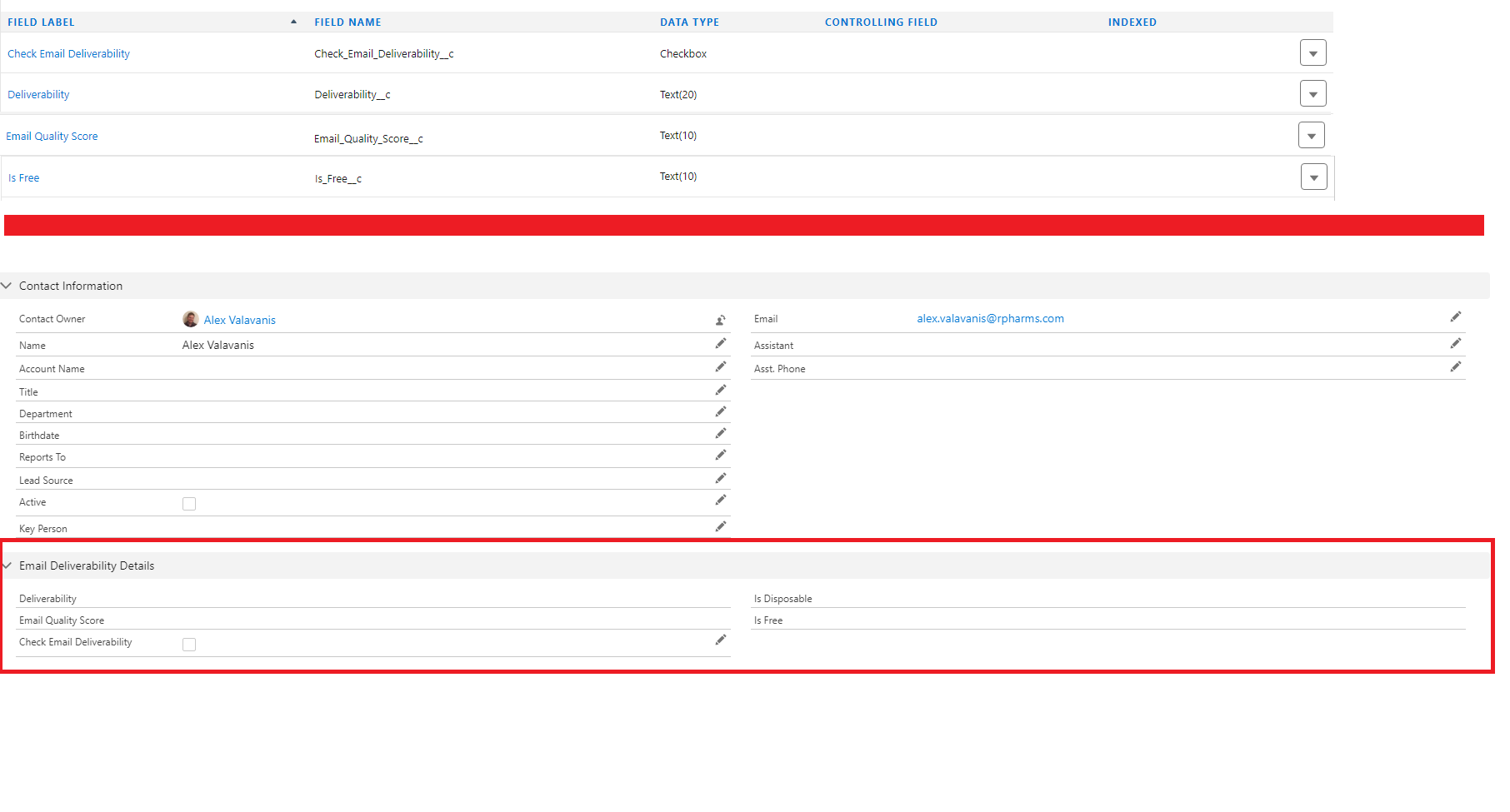
Before we go to step 1, you will need to create 5 fields (4 Text fields and 1 checkbox) on the Contact object. Ensure you add them to the page layouts (make the Text fields read-only from the page layout). These fields are the following:
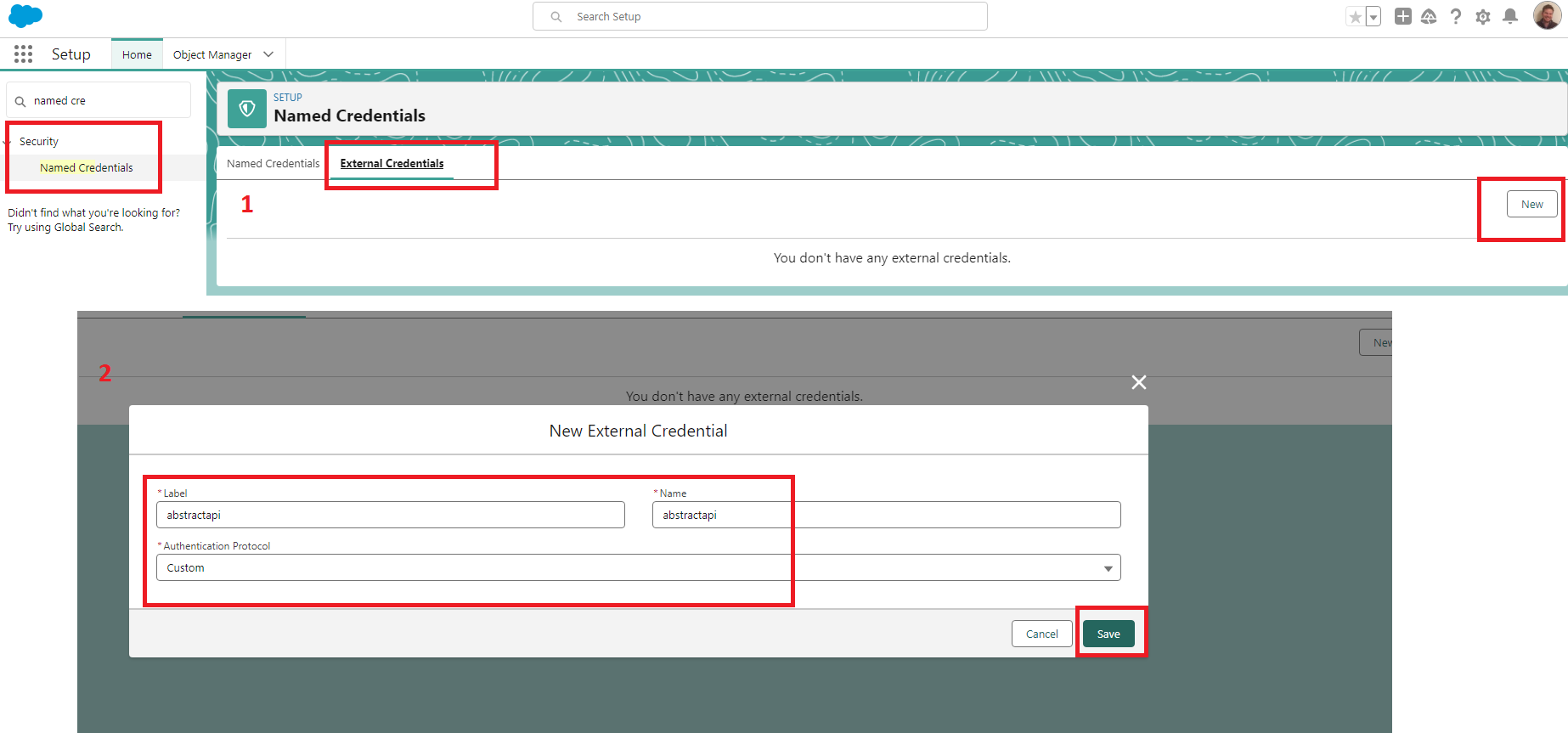
Step 1 – Create Named Credentials.
First We need to create an External Credential (screenshot below)
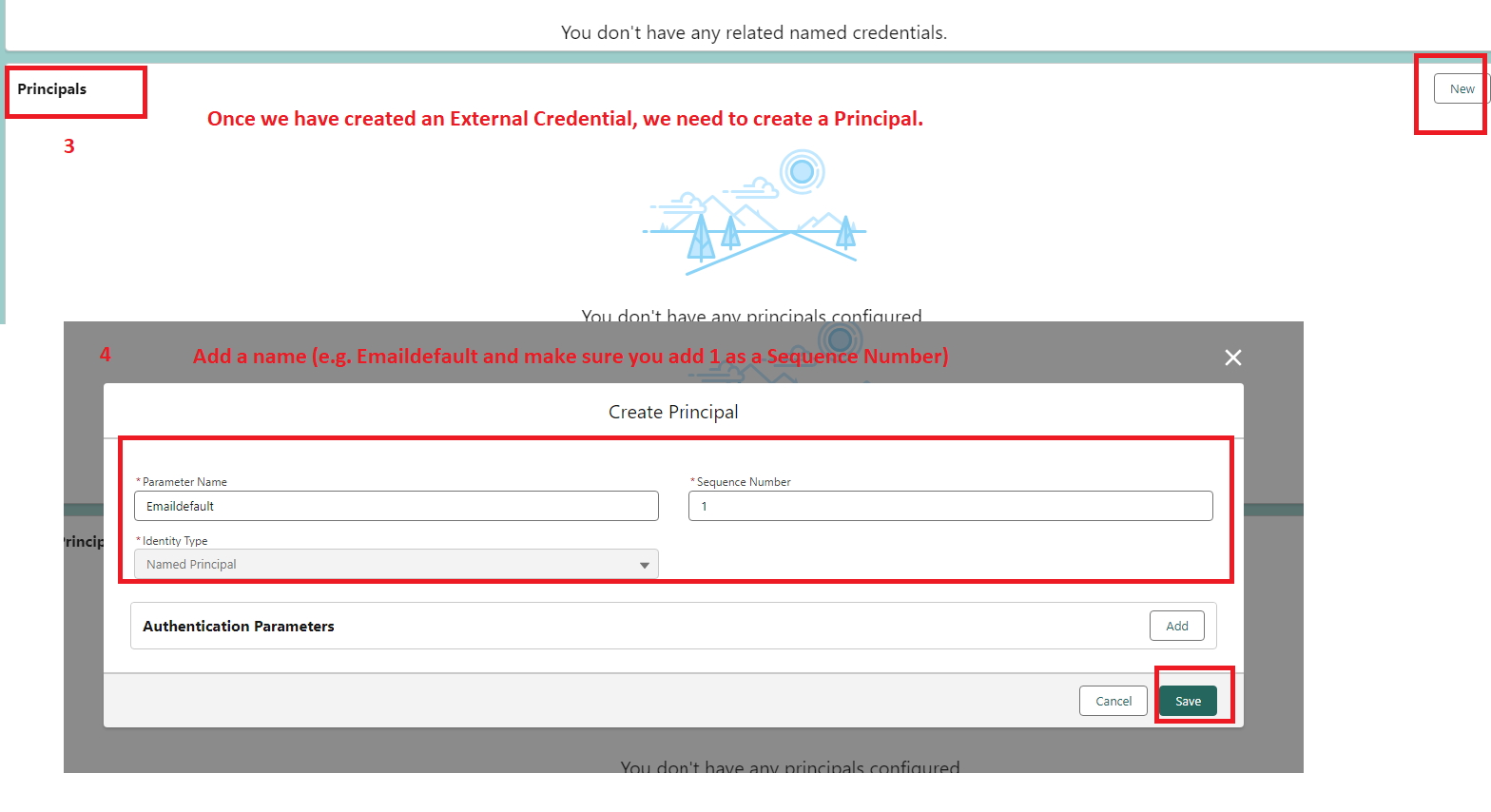
Once External Credential is created we will need to create a Principal. We will add this to the Permission Set (screenshot below)
Once a Principal is created, you will need to create the Named Credential (screenshot below).
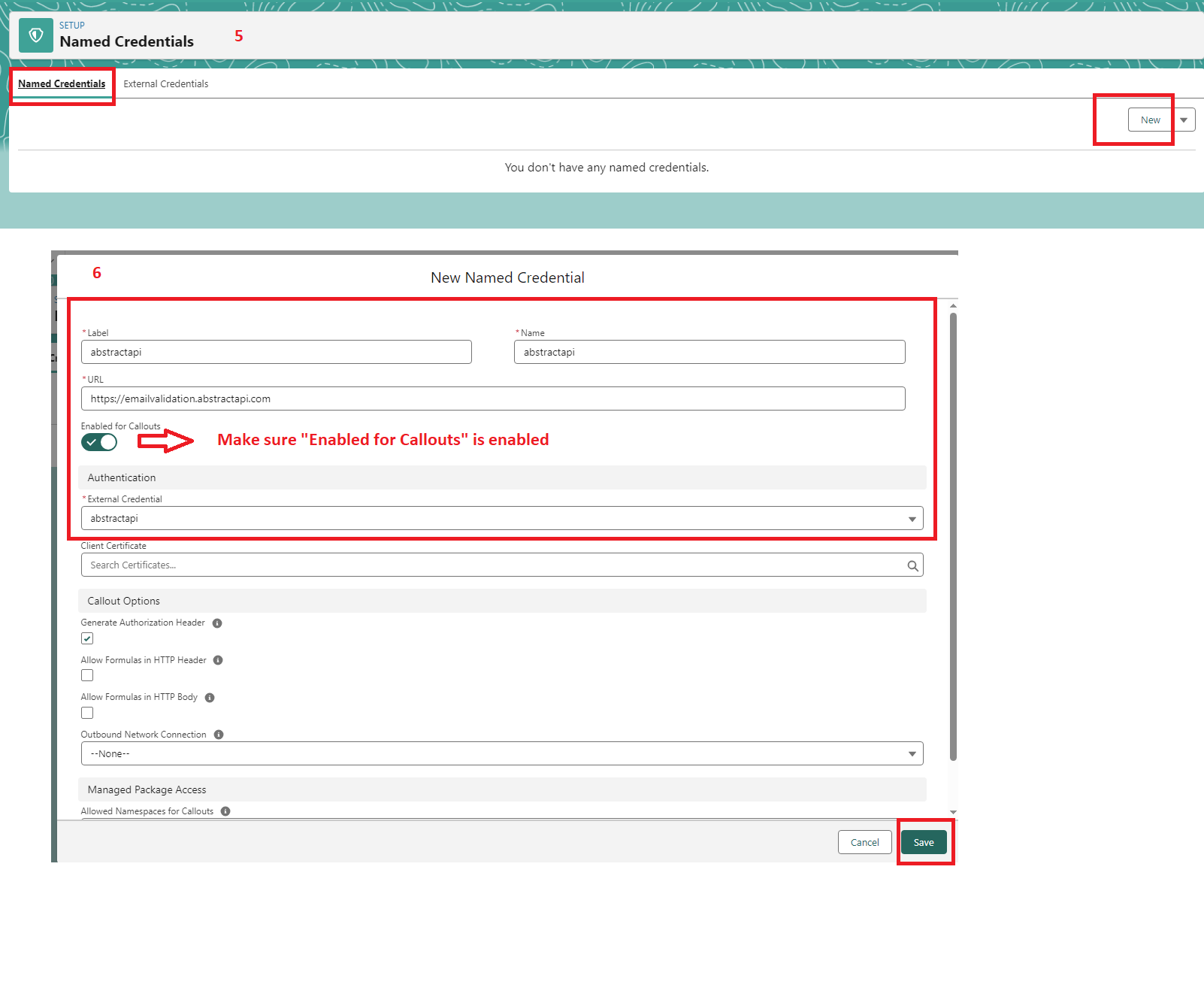
Step 2 – Create and assign the Permission Set.
Go to your Profile and click on “External Credential Principal Access” – Enable it and click on Save.
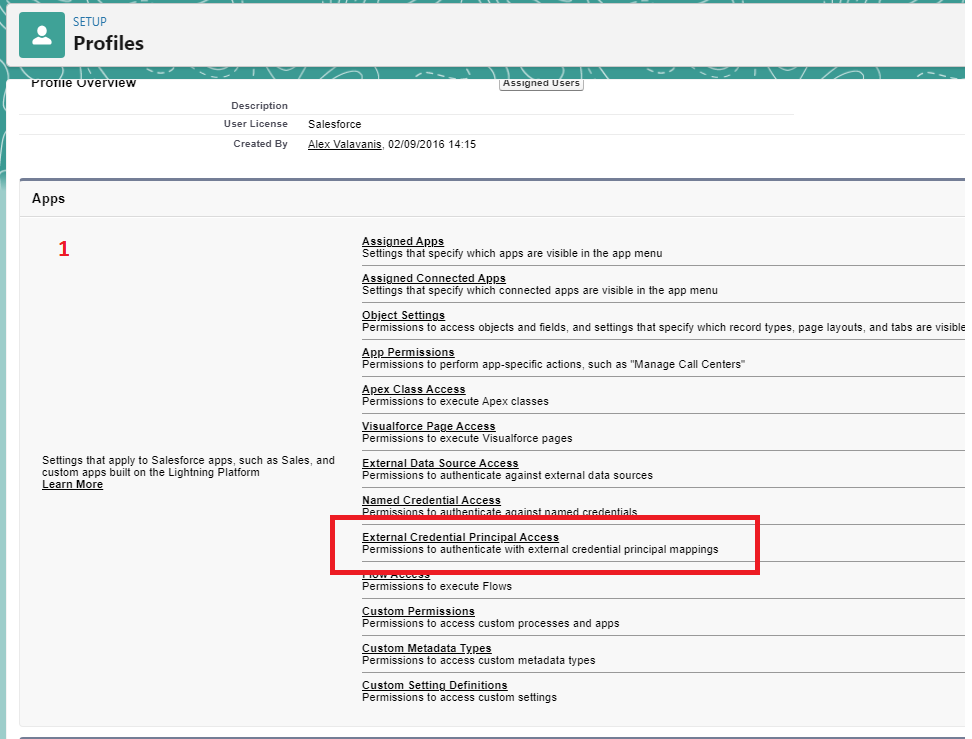
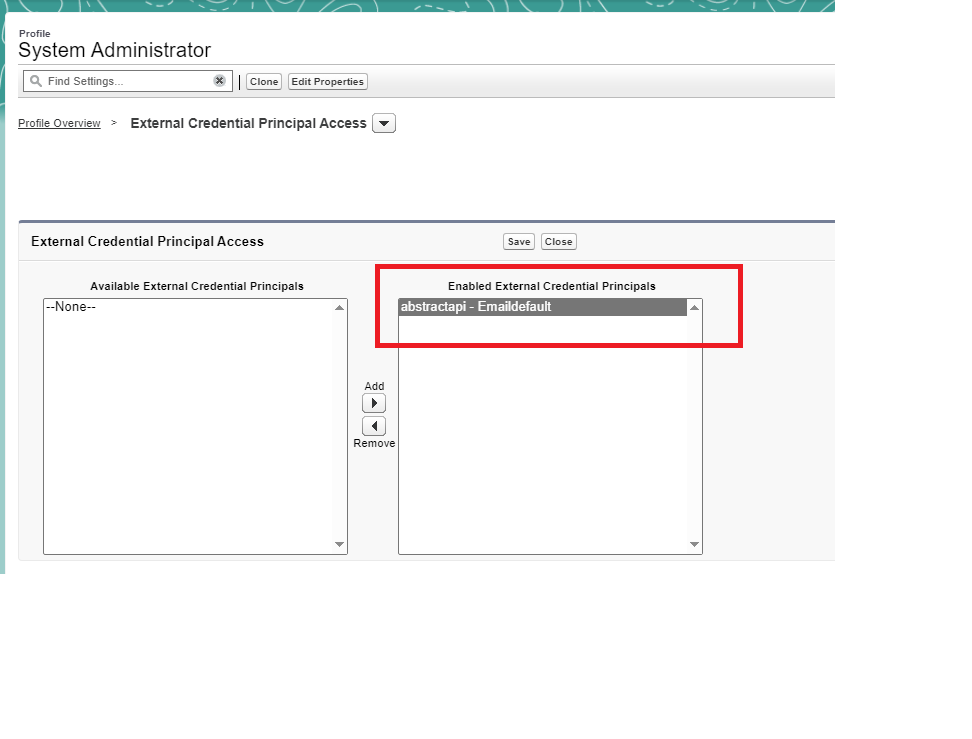
Step 3 – Create an Asynchronous autolaunched flow on the Contact object.
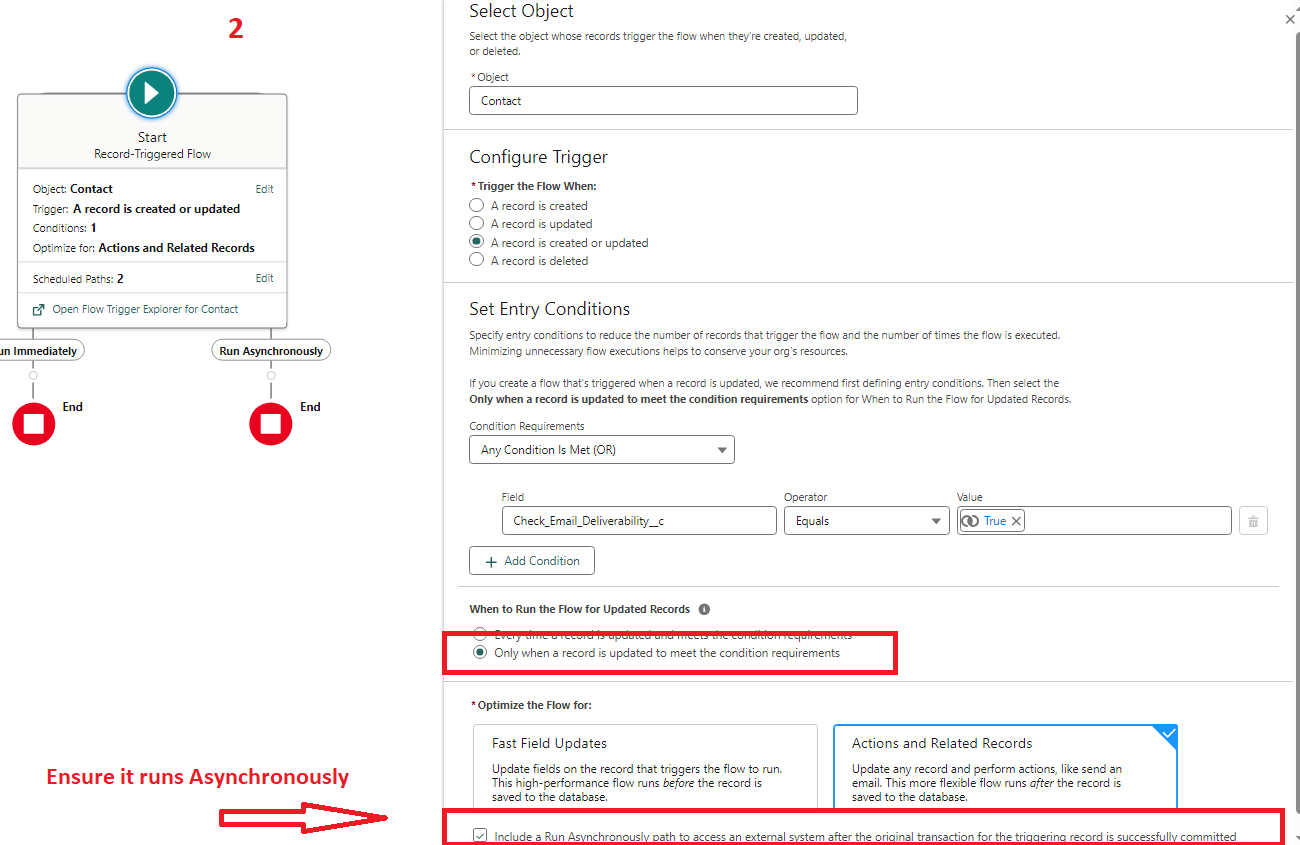
As you can see below (step 2) the flow will fire when the “Check Email Deliverability” is changed to be TRUE. (in other words it is not going fire on every any single update even if that flag is TRUE – it will only fire if the actual field is changed to TRUE).
Solution
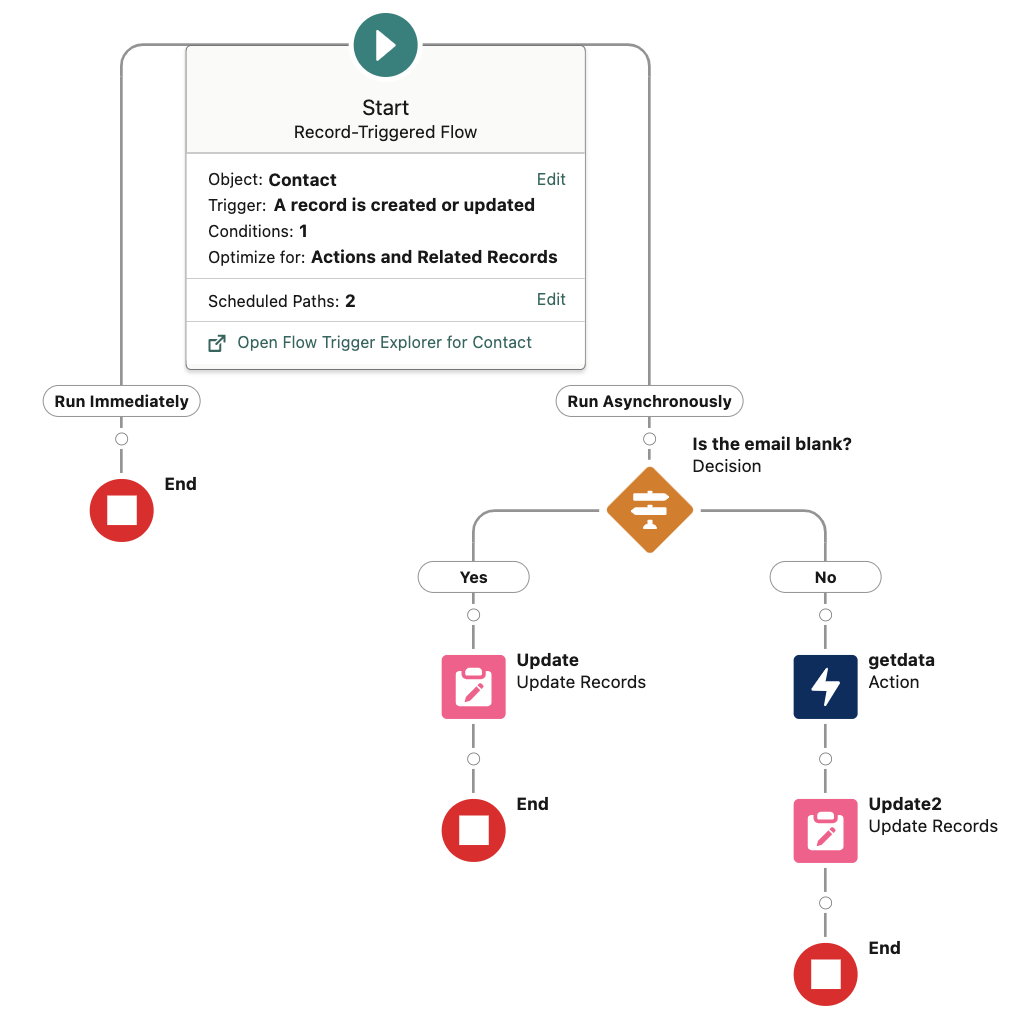
Need to create a Record-Triggered Flow – Follow steps below:
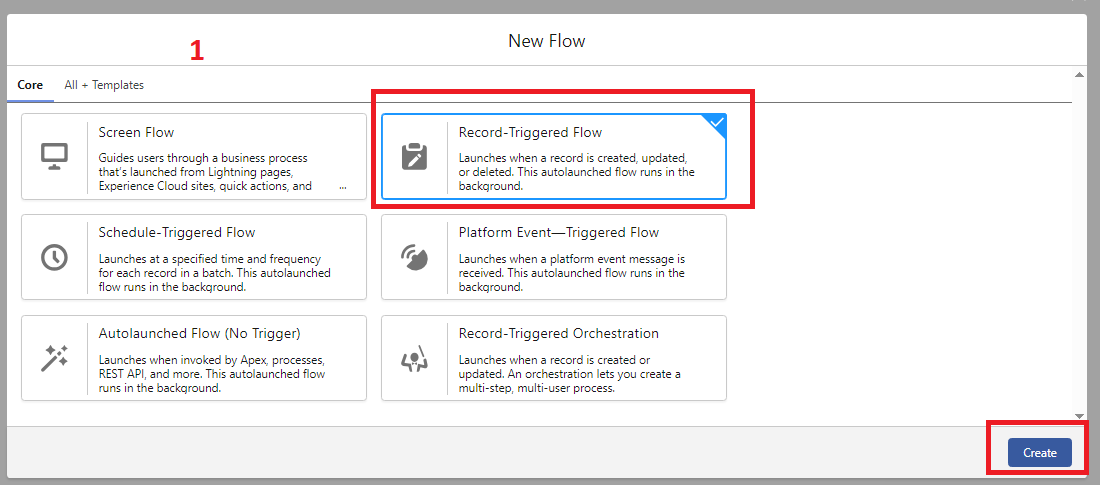
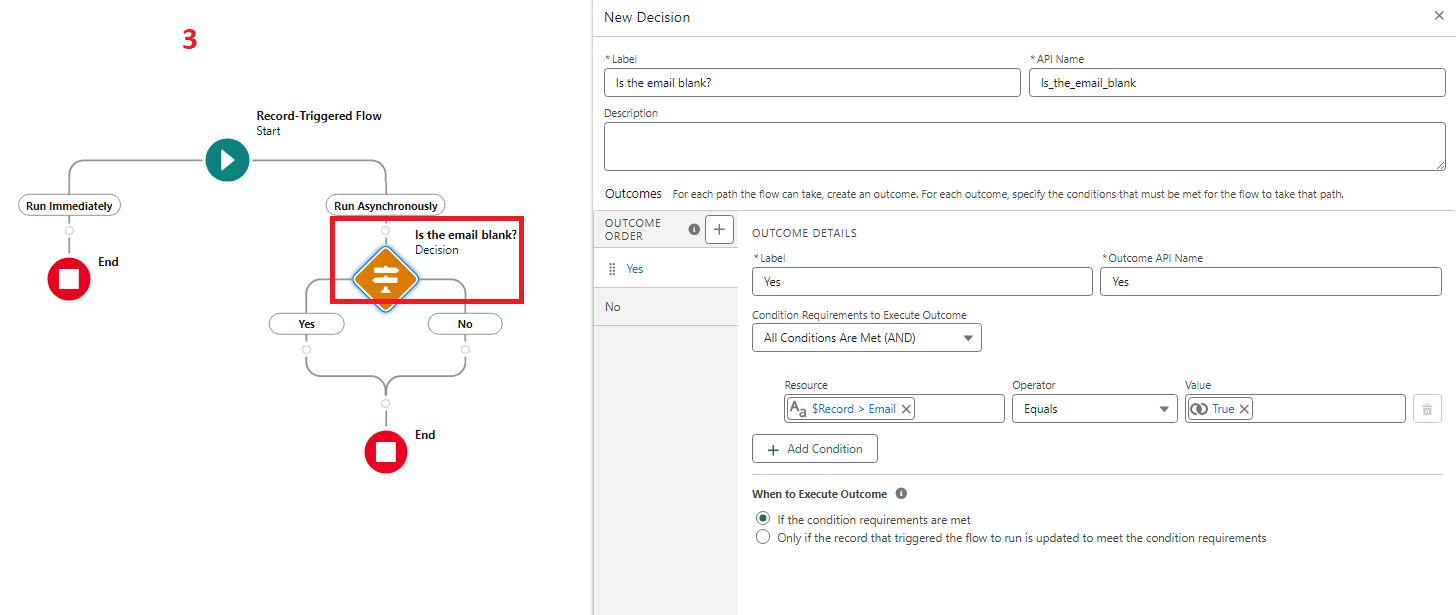
Now we create the Decision element:
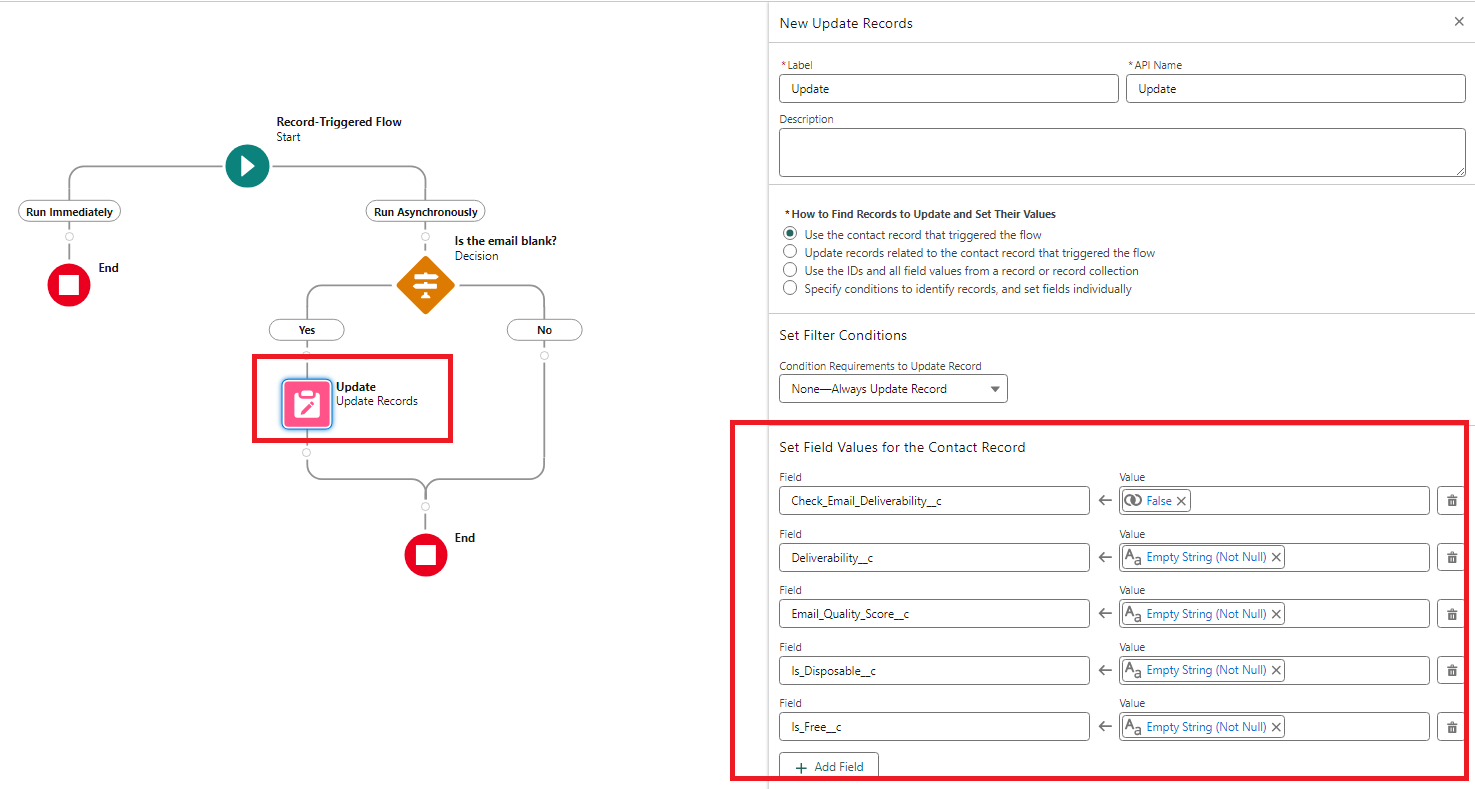
Create an Update element to the “Yes” outcome (screenshot below)
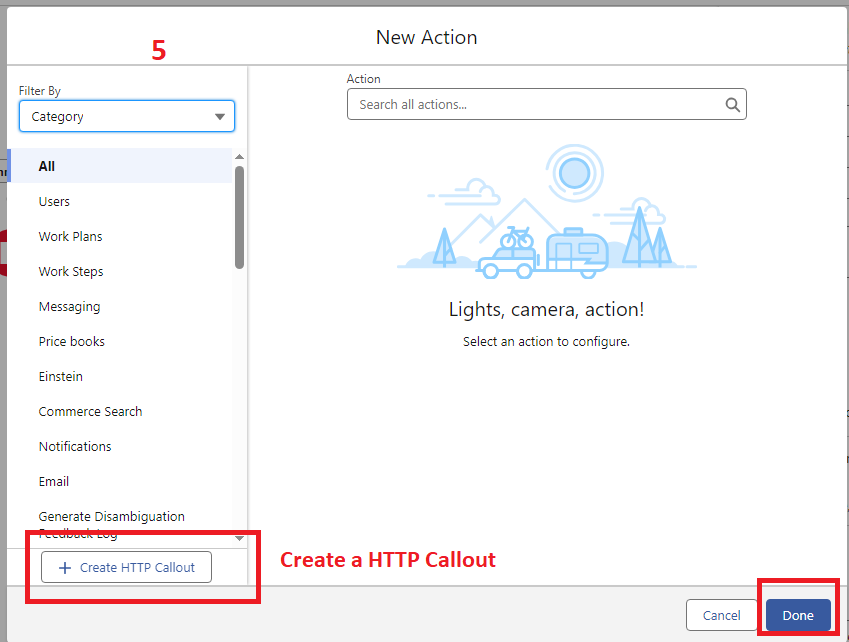
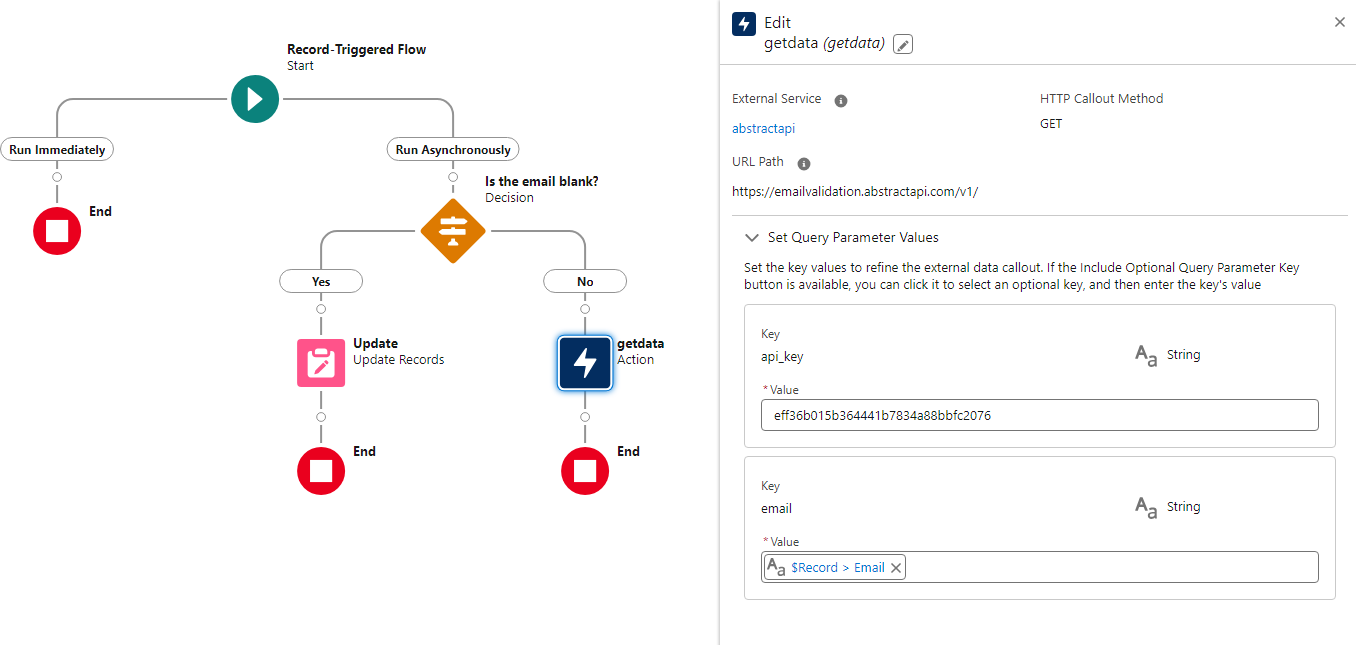
Now we need to create an Action element for the “No” outcome.
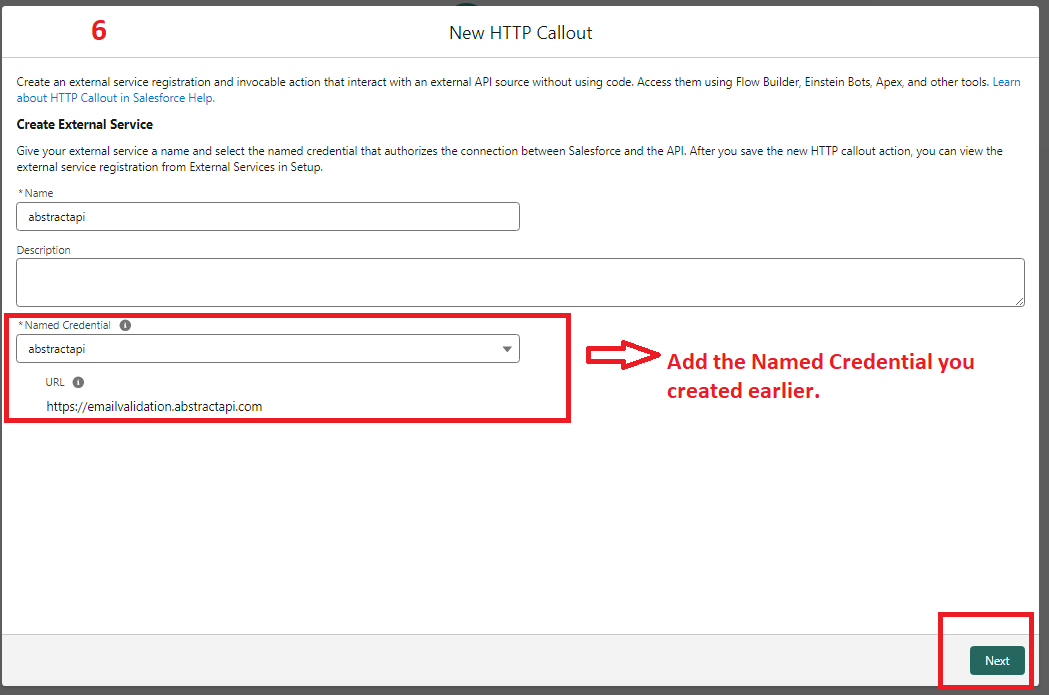
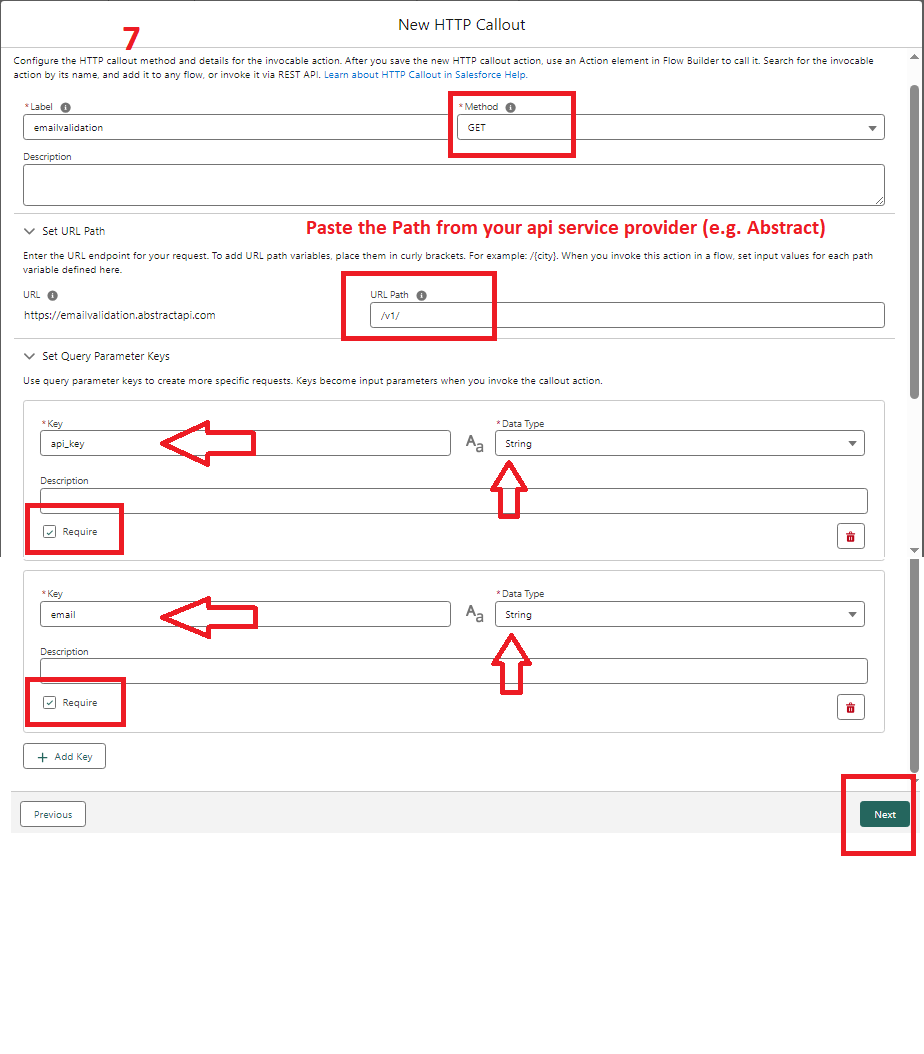
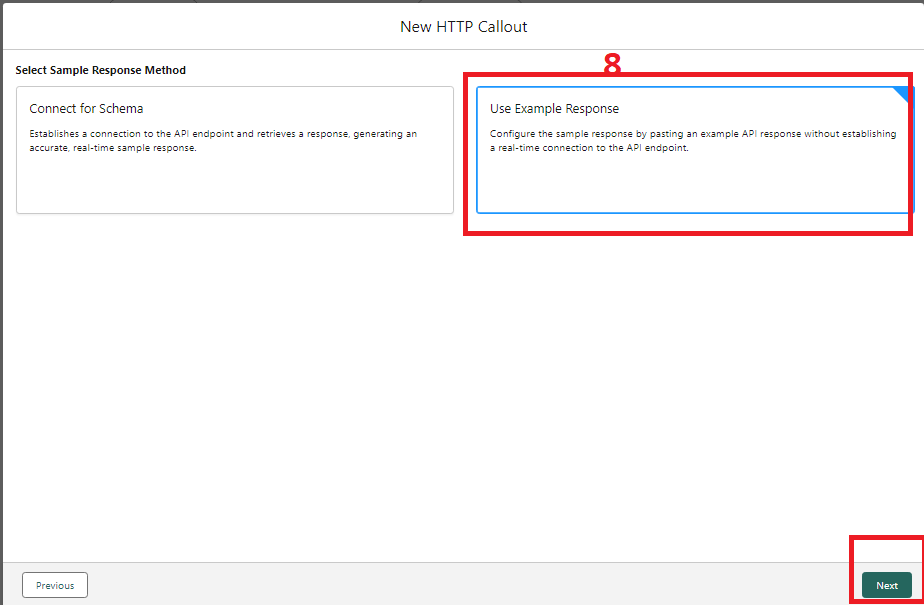
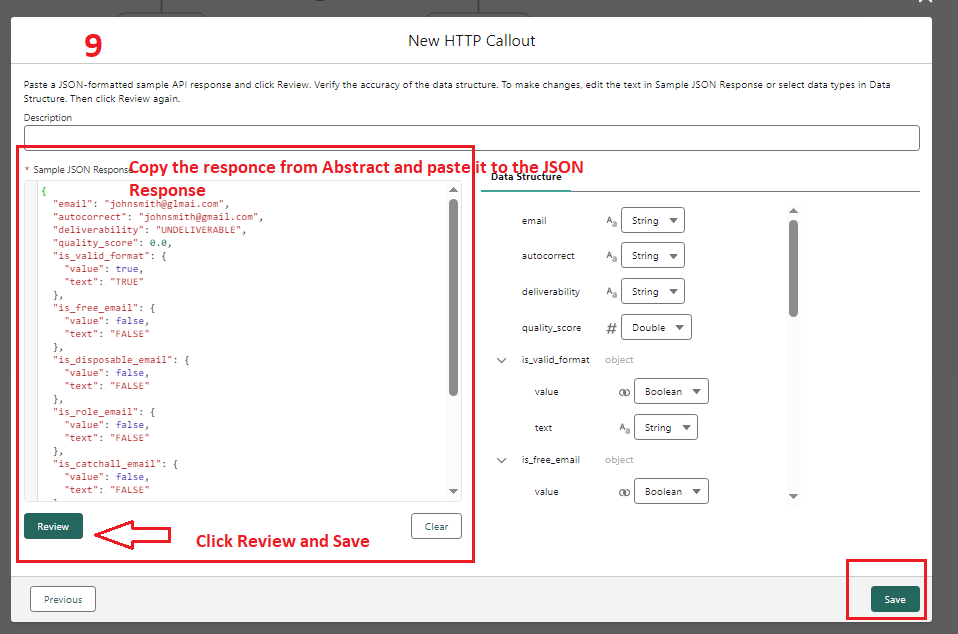
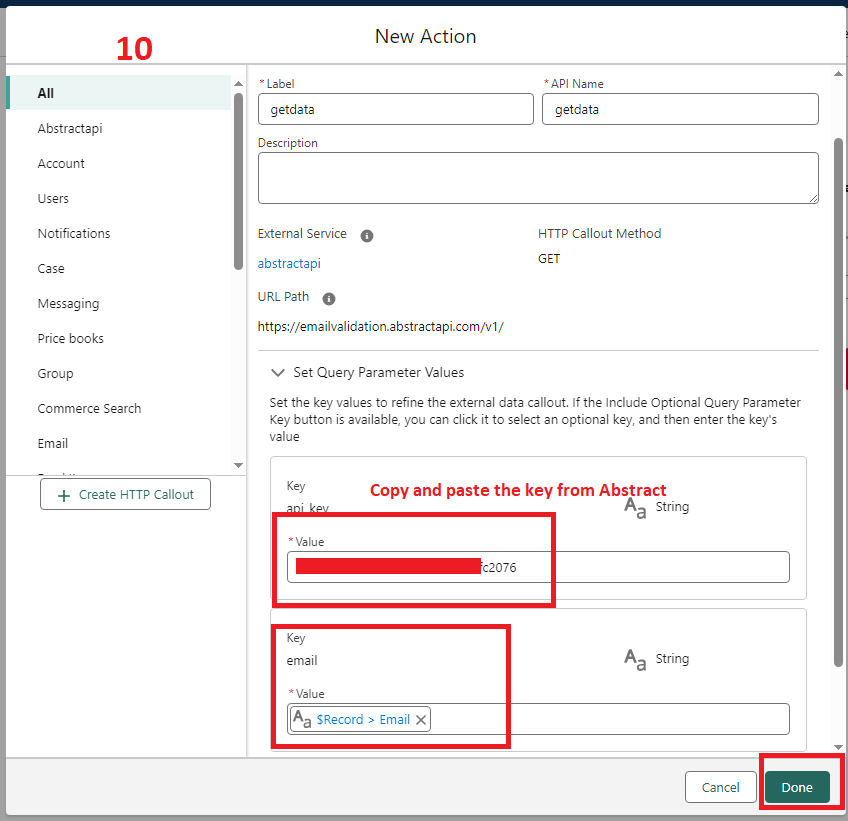
Action element will look like the below screenshot:
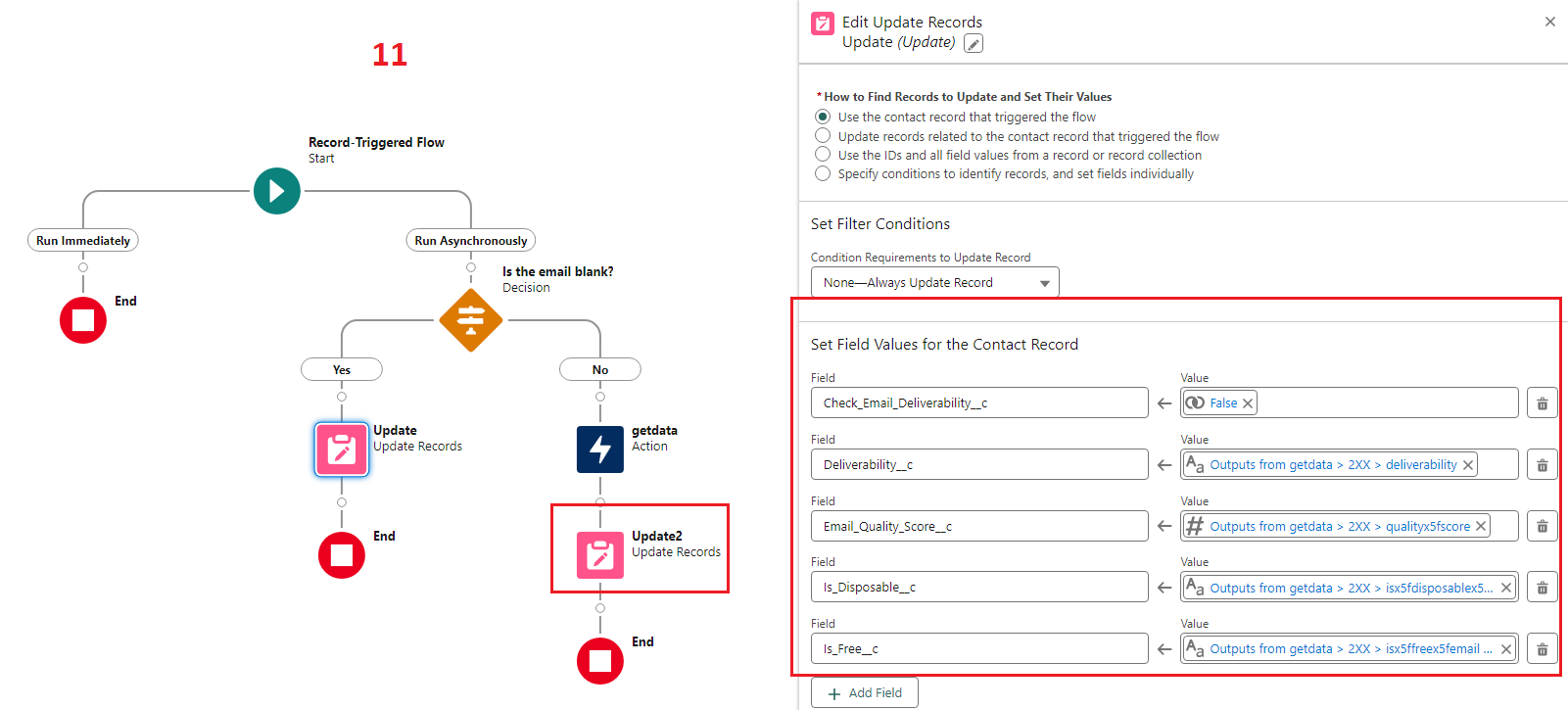
Create the last element (Update) and then save and activate the flow.
Step 4 – Create a Before Save autolaunched flow on the Contact object.
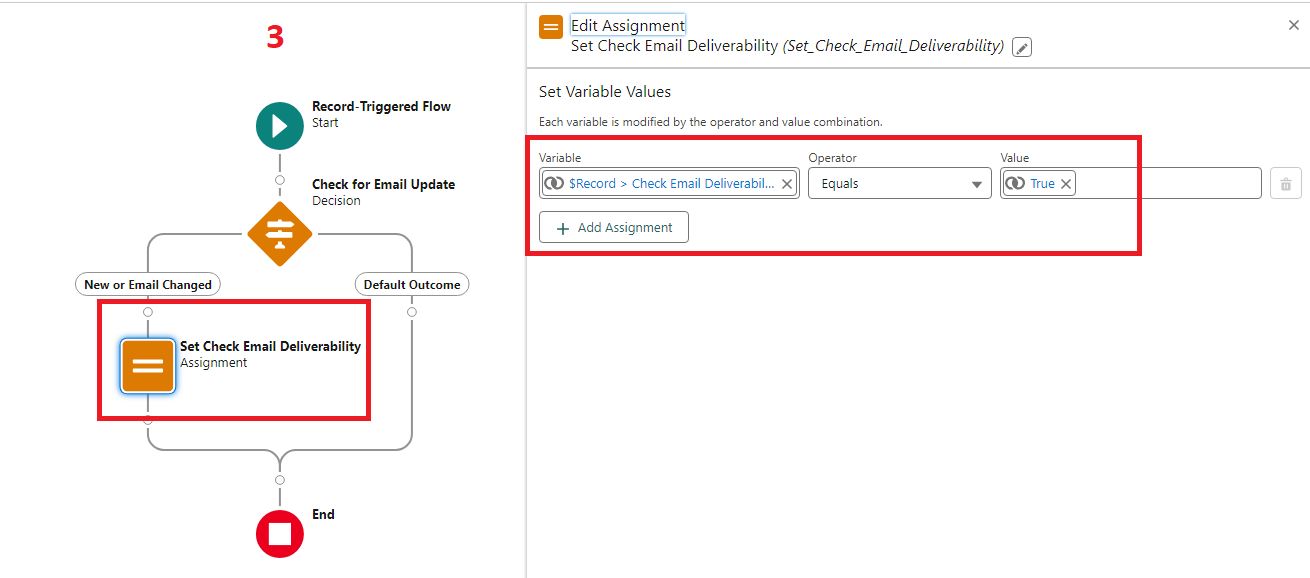
Since we are using an asynchronous process we need to create a Before Save flow which will trigger the changes consistently and controllably. The below flow will fire when email address is new and not <blank> or if the email address is changed. The “Check Email Deliverability” checkbox also allow us to bulk update any contacts (without changing any email addresses).
Solution
Once you create a Record-Triggered flow, create a formula.
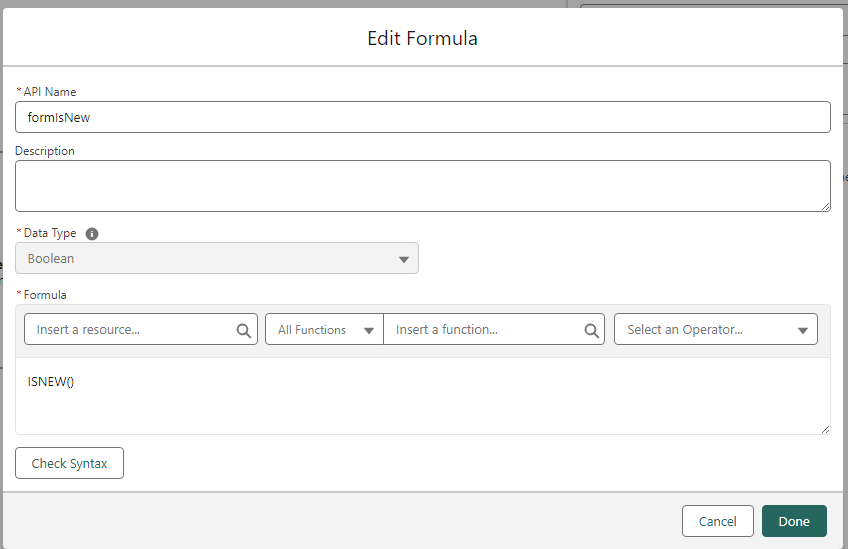
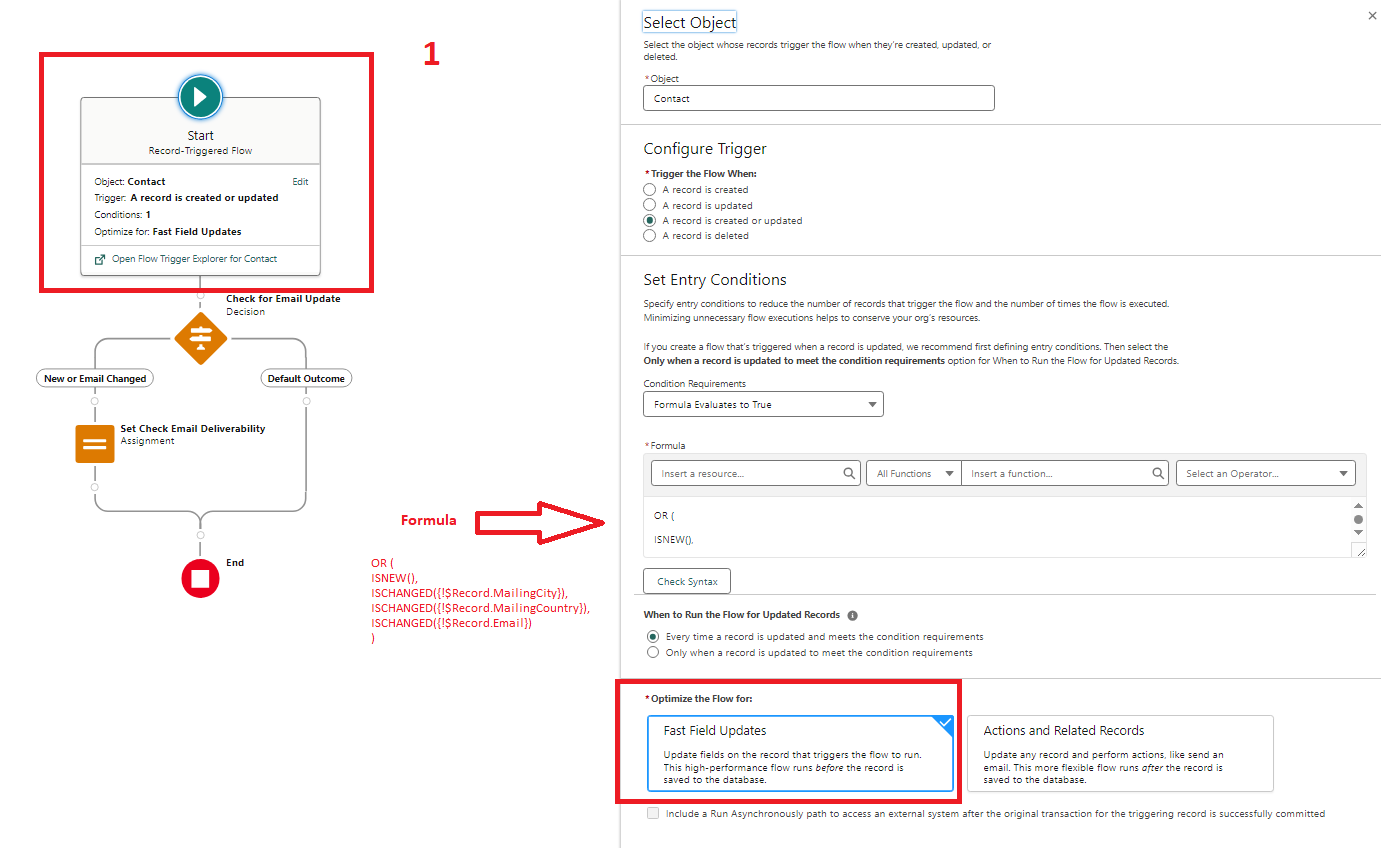
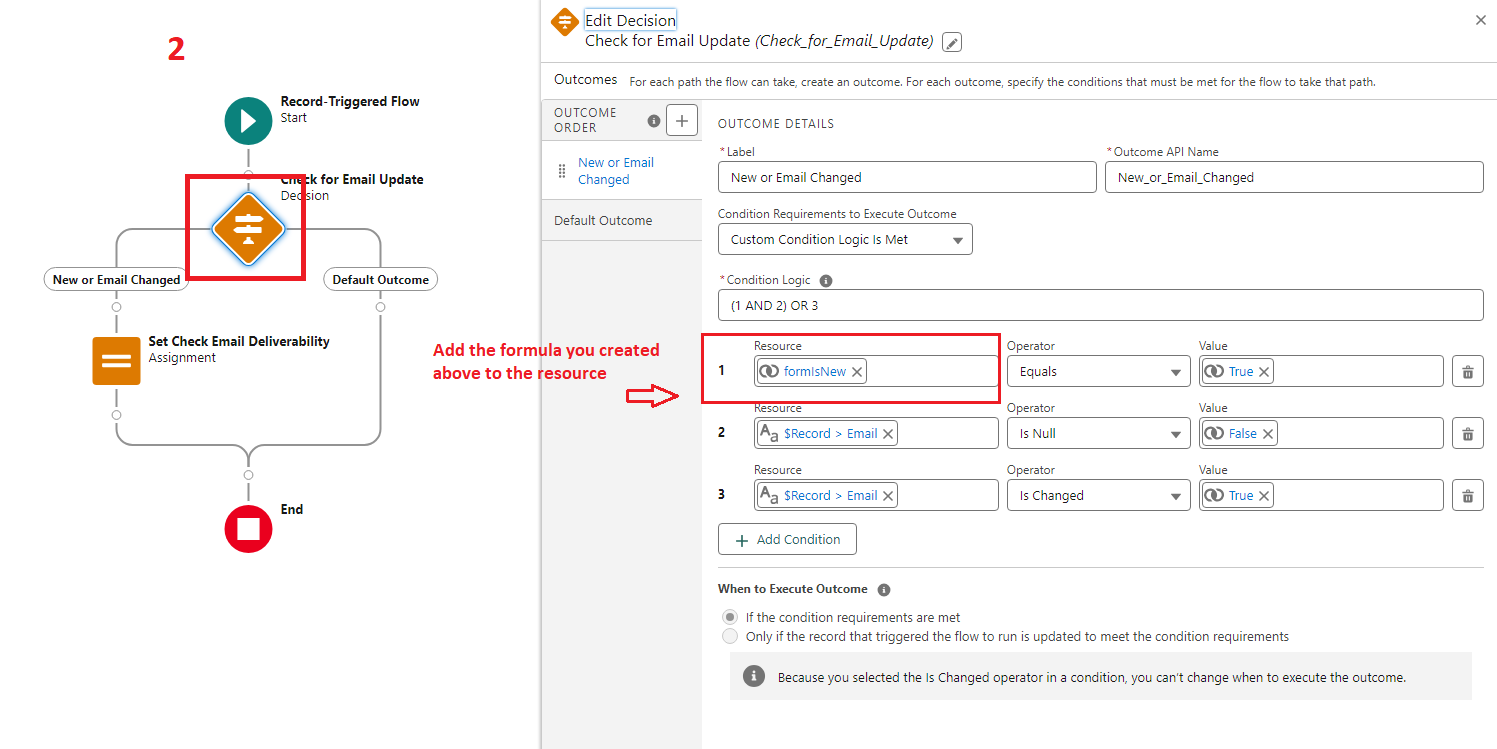
Finally, add the element (Assignment). Save the flow as “Contact – Before Save” and activate it.
VIDEO DEMO
 Cloud Mantras